Five Features That Help You to Draw Better Diagrams
My five favorite features of diagrams.net (formerly draw.io)
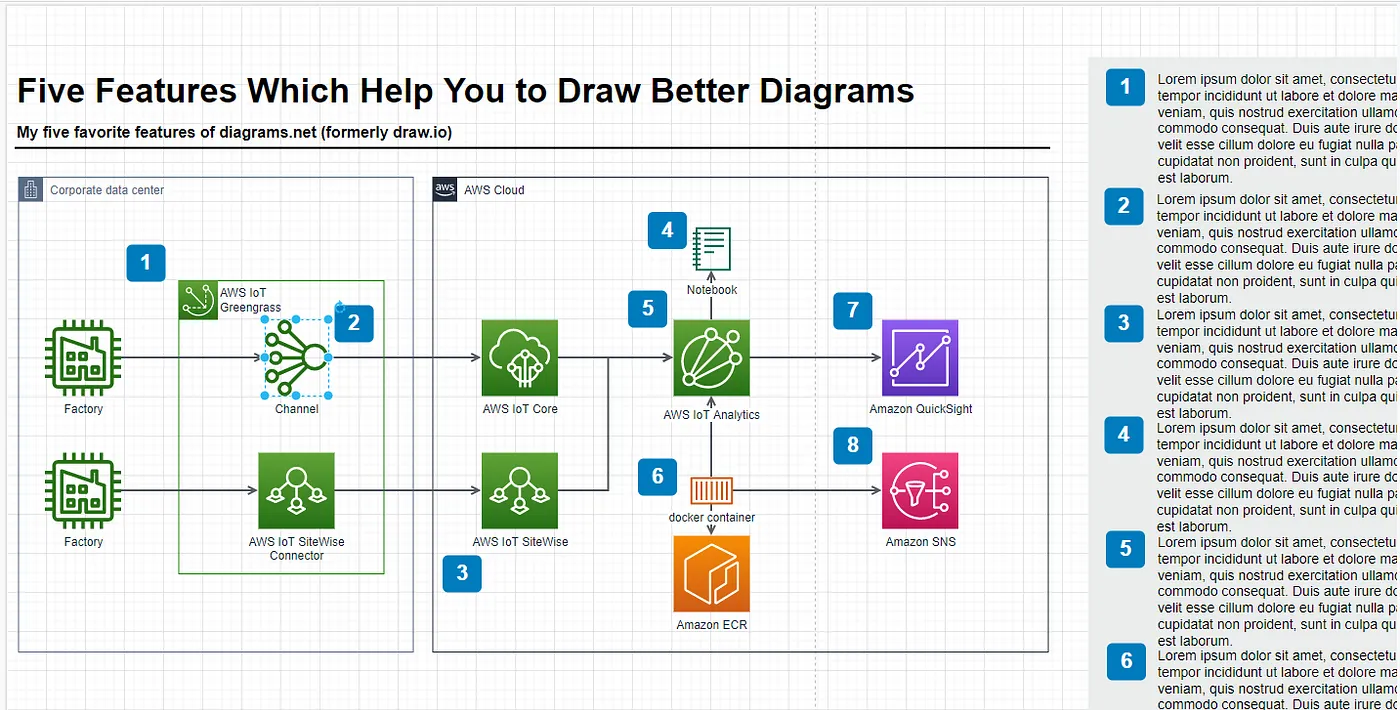
Getting started with diagrams.net
You can download diagrams.net from their official side or just use the online version. The app runs on Linux, Windows and MacOS. If your compliance needs require it, you can even run your own server inside your environment via their docker container https://github.com/jgraph/docker-drawio
Icons from the major Cloud Providers are already included.
When you start the application, you are greeted with this screen:

As you can see in the screenshot above. The default installation already comes with the icons of the major cloud providers preloaded. This is especially helpful if you work with the major cloud providers like AWS, Azure or Google and you need to draw lots of architecture sketches. If you start from a blank diagram, you can get the icons in your toolbar by clicking “More Shapes” and then choosing the Cloud Provider Icons.

If you use other tools, you can get these icons as well. Amazon for example offers them here for free
Styling
If you do architecture jam session where you sit together with your colleagues and you work on a mutual understanding of a process or an architecture, you often don’t want the diagram to look too polished. For that, there is a Sketch Style which can be enabled in the style tab:
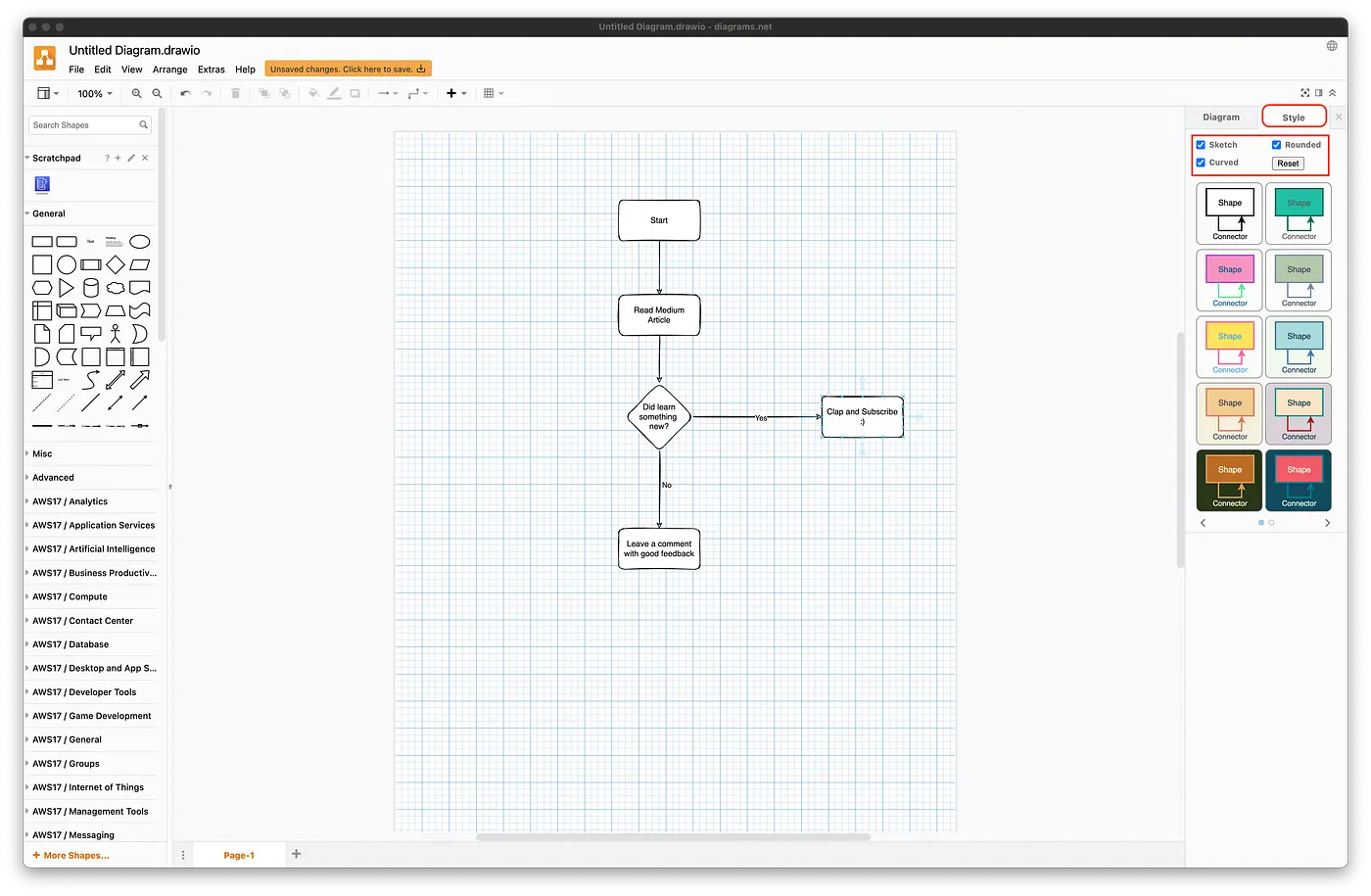
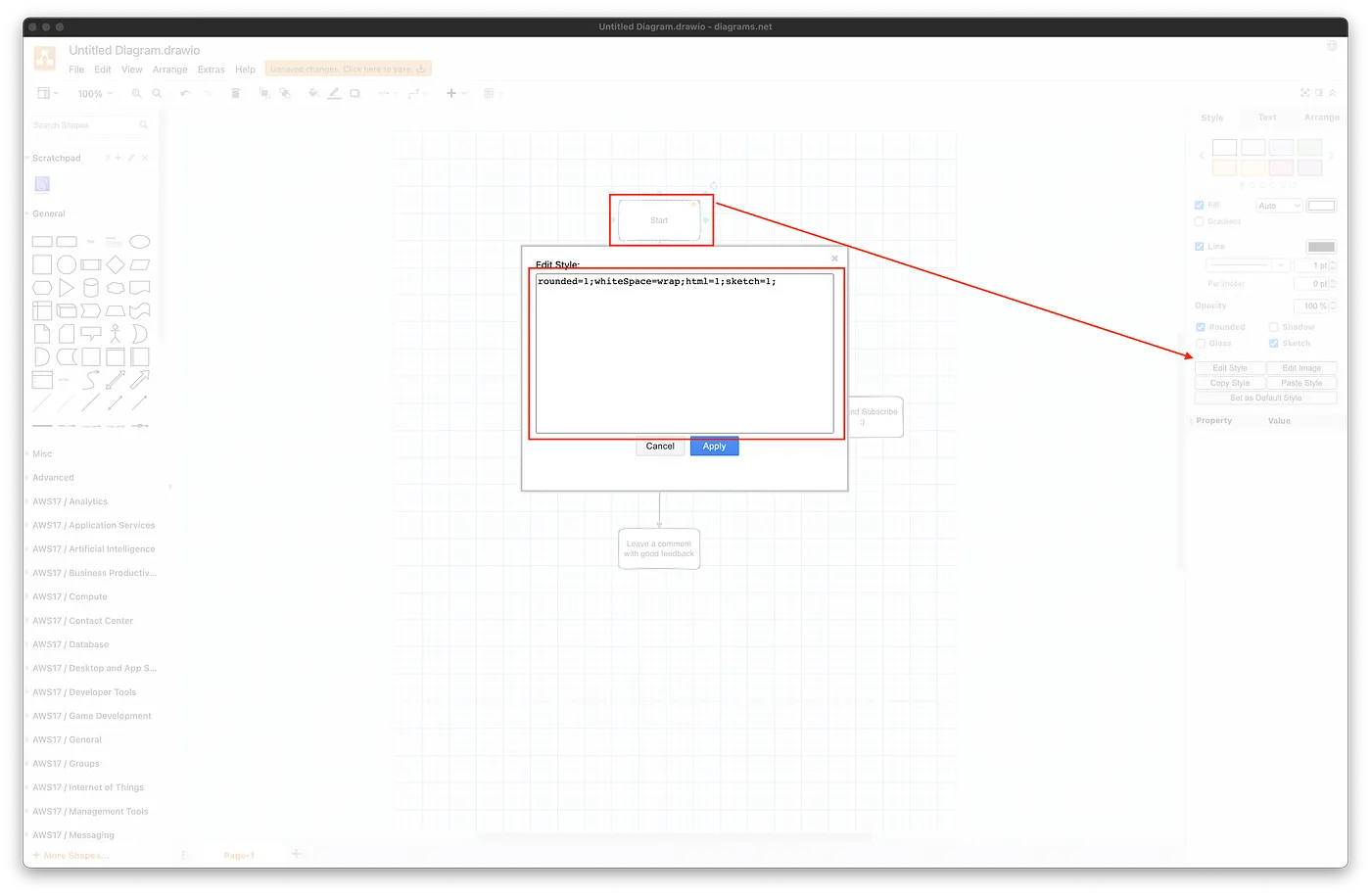
In the sidebar, you can find more styles to choose from. These styles could serve as a starting point if you, for example, want to introduce your corporate design into the diagrams. By clicking on the individual shapes, you can edit their styles as well and make them the default style:
Auto Layouts
diagrams.net is a free-form editor and does not do implicit layouting in the standard configuration. That means you are free to place your shapes and lines wherever you want. But sometimes you need more structure. Or you aim for a certain style of diagram and layout. diagrams.net comes with a variety of layout options. You can find them in the Arrange > Layout menu. With the integrated layouts we can easily go from this:

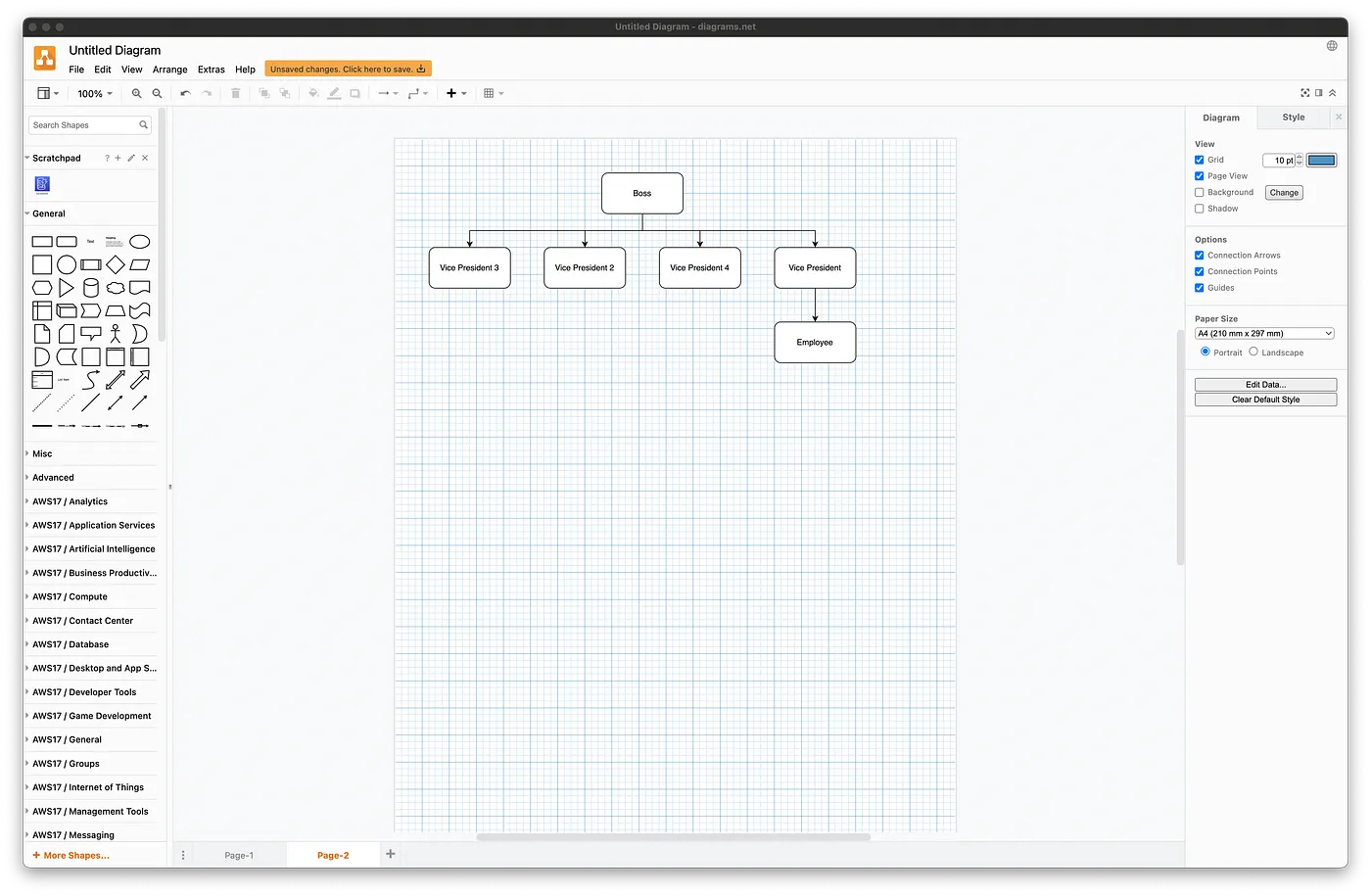
I found the layout to be good for most standard use cases. But sometimes the out of the box options lead to broken layouts with crossing lines or strangely placed shapes.
To solve that I sometimes use the option to fully customize the layout. This can be done via the menu Arrange>Layout>Custom. The settings here are derived from the JGraph Library. You can find possible options in their documentation.
Integration of Text-based charts
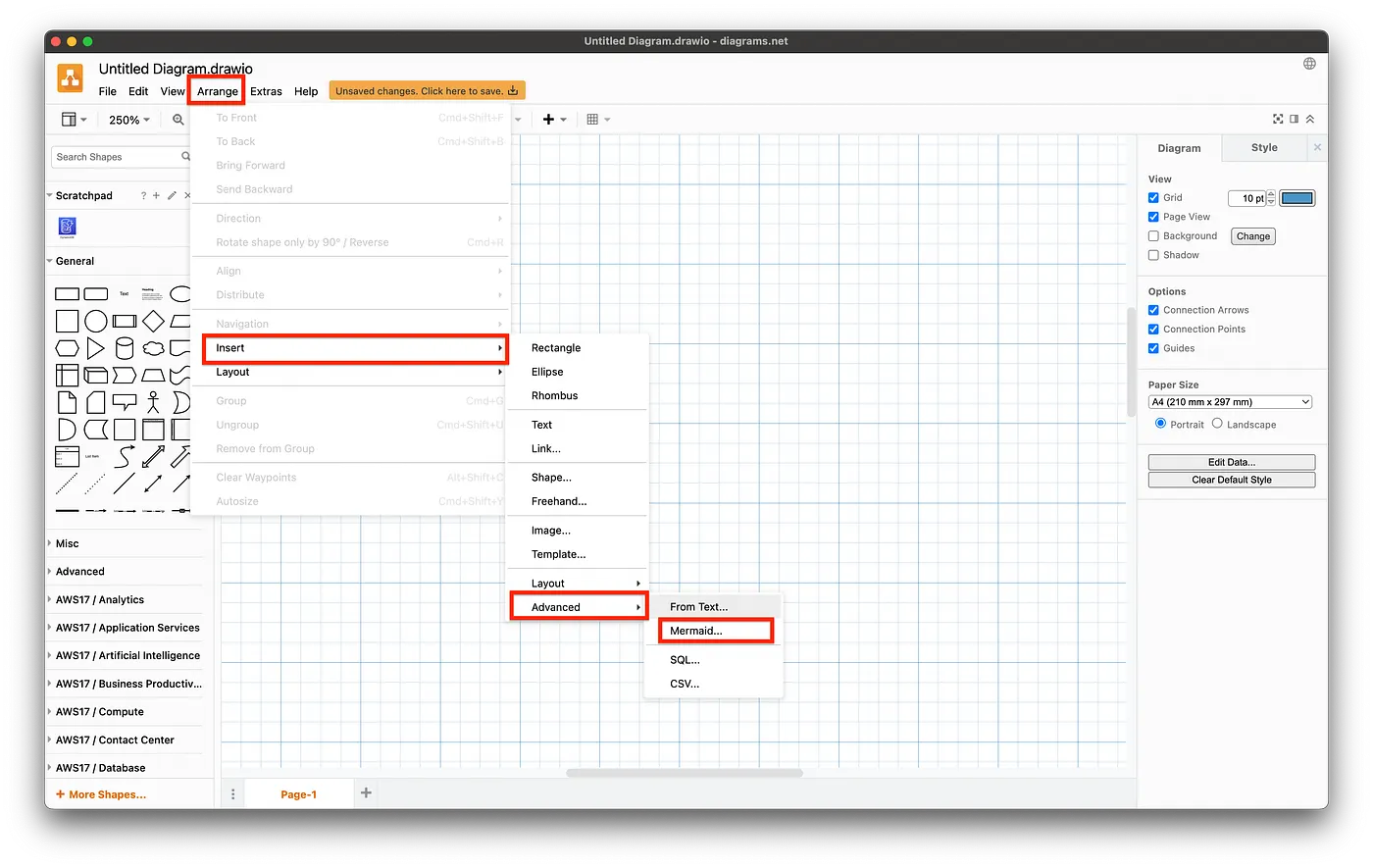
I find the freeform editing incredible for things like architecture Diagrams or describing processes and creating quick sketches. For diagram types like Sequence Diagrams, Gant Charts or Class Diagrams which are more constrained by nature, the free-form editing falls short in my opinion. This is not a problem of diagrams.net in particular but the free-form editing approach in general. This is where text-based diagramming shines. One of these tools is called mermaid.js. If you want to combine your text-based mermaid.js diagrams with your free-form diagrams, then diagrams.net has you covered. Hidden deeply in the menu you can find the option to insert mermaid.js(and other) text-based diagrams.
Go to Arrange> Insert > Advanced > Mermaid
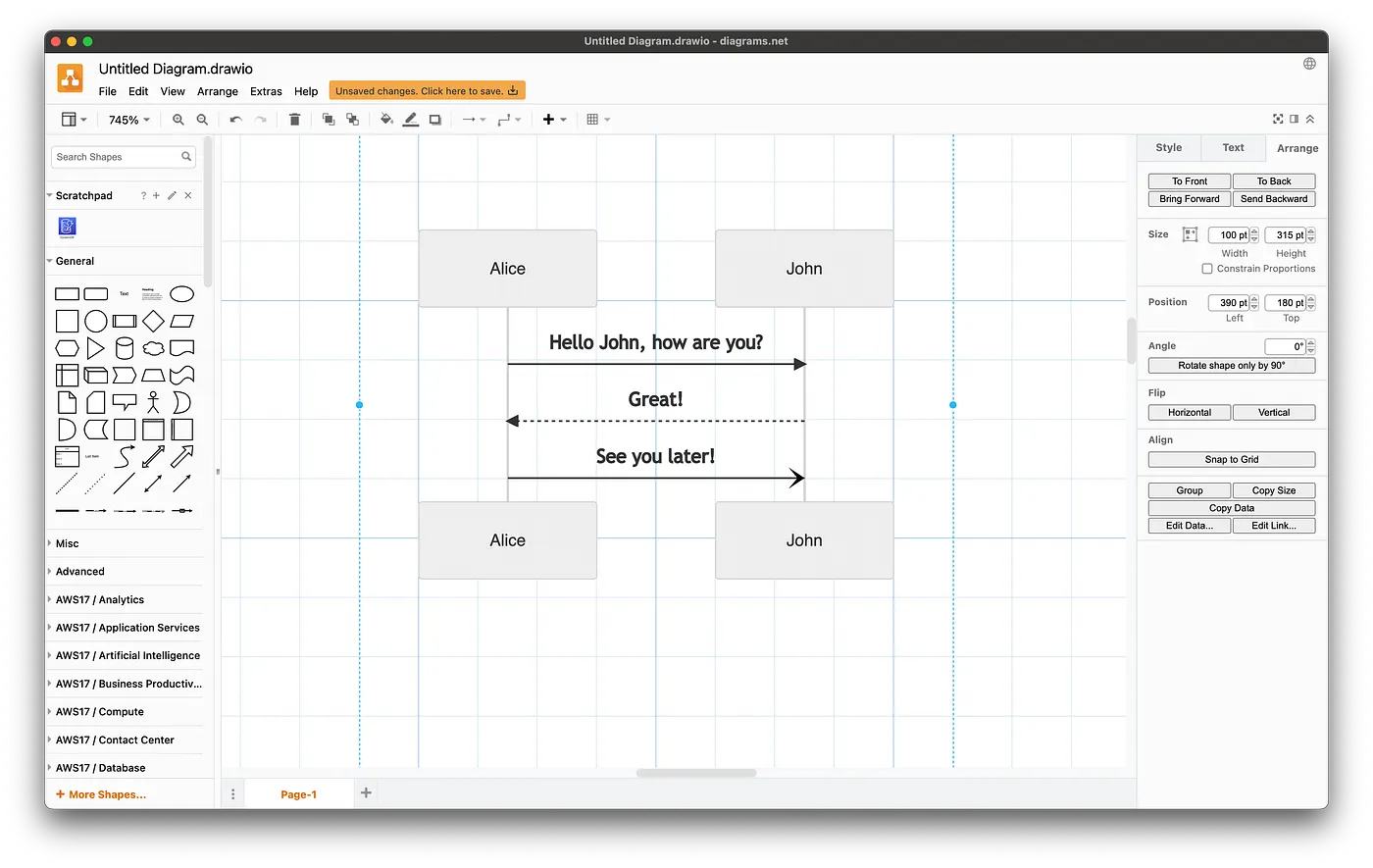
A new window opens where you can insert your diagram code. If we paste the sequence diagram example from the mermaid site, then the result will look like this.
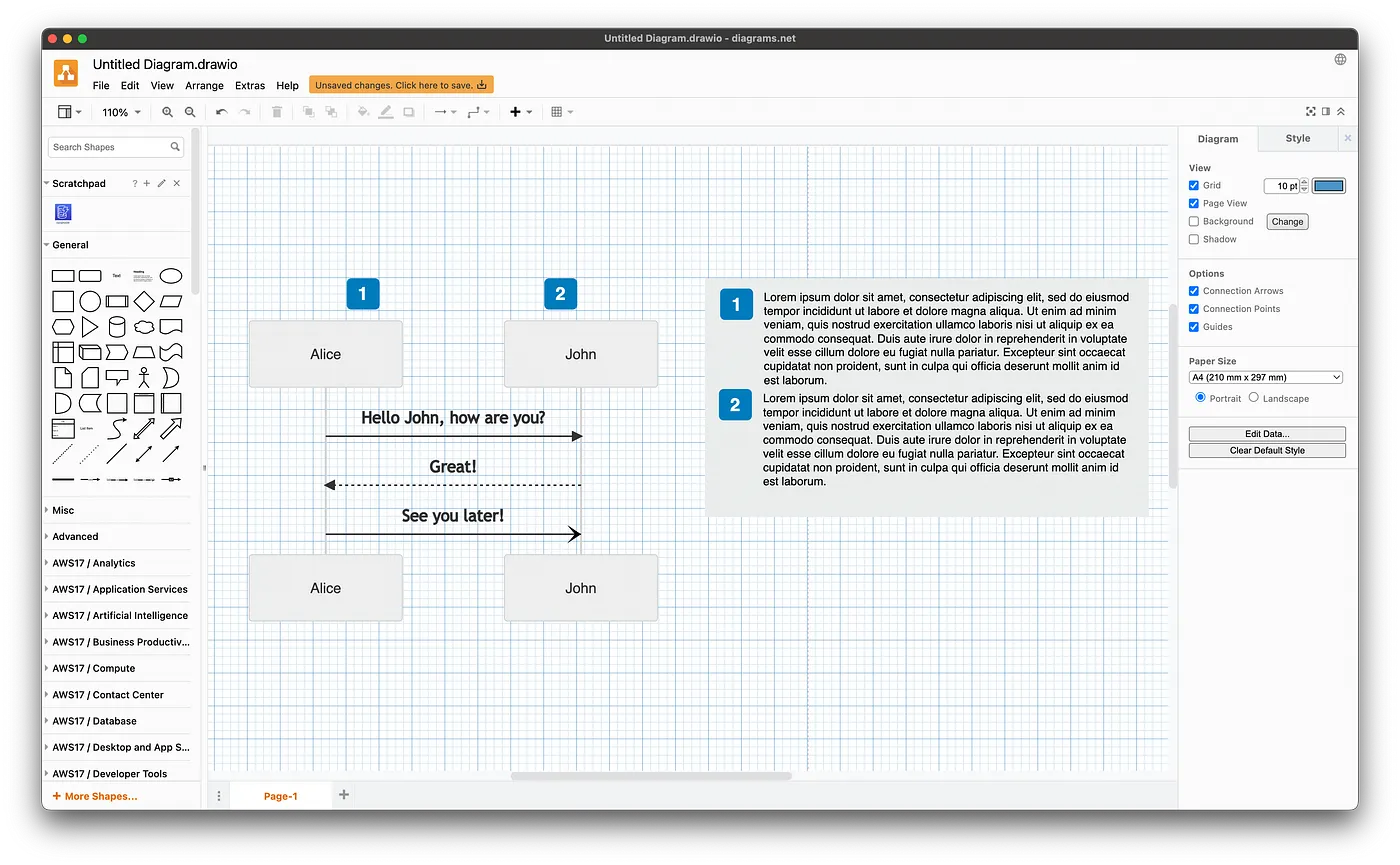
Unfortunately, the diagram is not editable with the freeform tools of diagrams.net. That would be next level… But you can, however, edit the diagram code with a double click on the diagram. This allows you to combine the power of text-based diagrams with the flexibility of free-form editing. I often use this approach to annotate my text-based charts in diagrams.net
Easy sharing
Versioning with GIT
The tool saves the diagrams in its own format. By default, the format is compressed to save space. You can disable that by going to File> Preferences and unchecking the “Compressed” option.
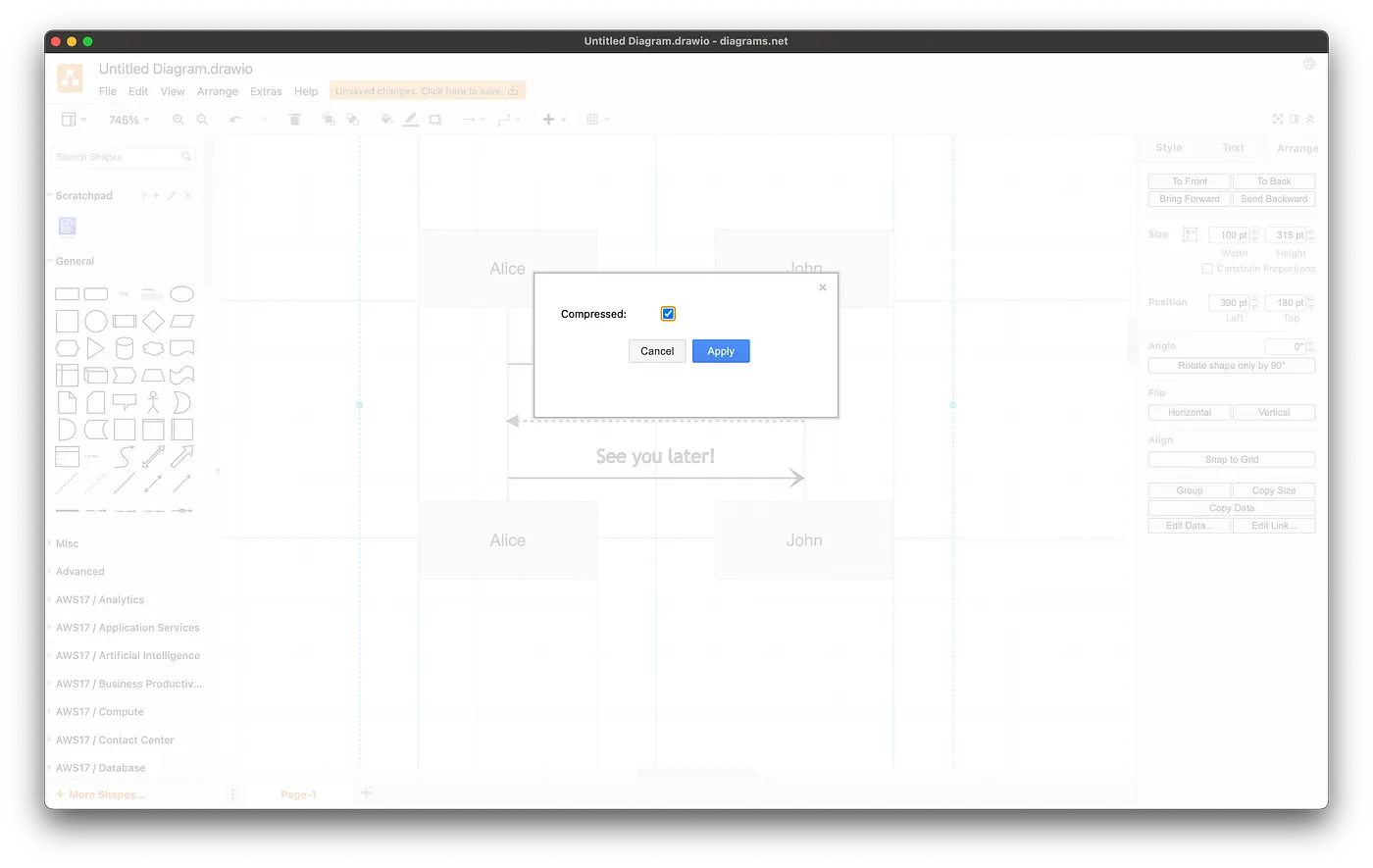
After you do that, the tool will produce normal XML files which you can read and more importantly check in to version control and use in pull requests and there like. If you have a custom diffing solution that can read the compressed files, this isn’t too important. But good to know, nevertheless.
Sharing them as images and re-importing them
Another cool feature is that you can export your diagrams as images and preserve their definition in the image. When you export them, you can check the “Include a copy of my diagram” in the export dialog.
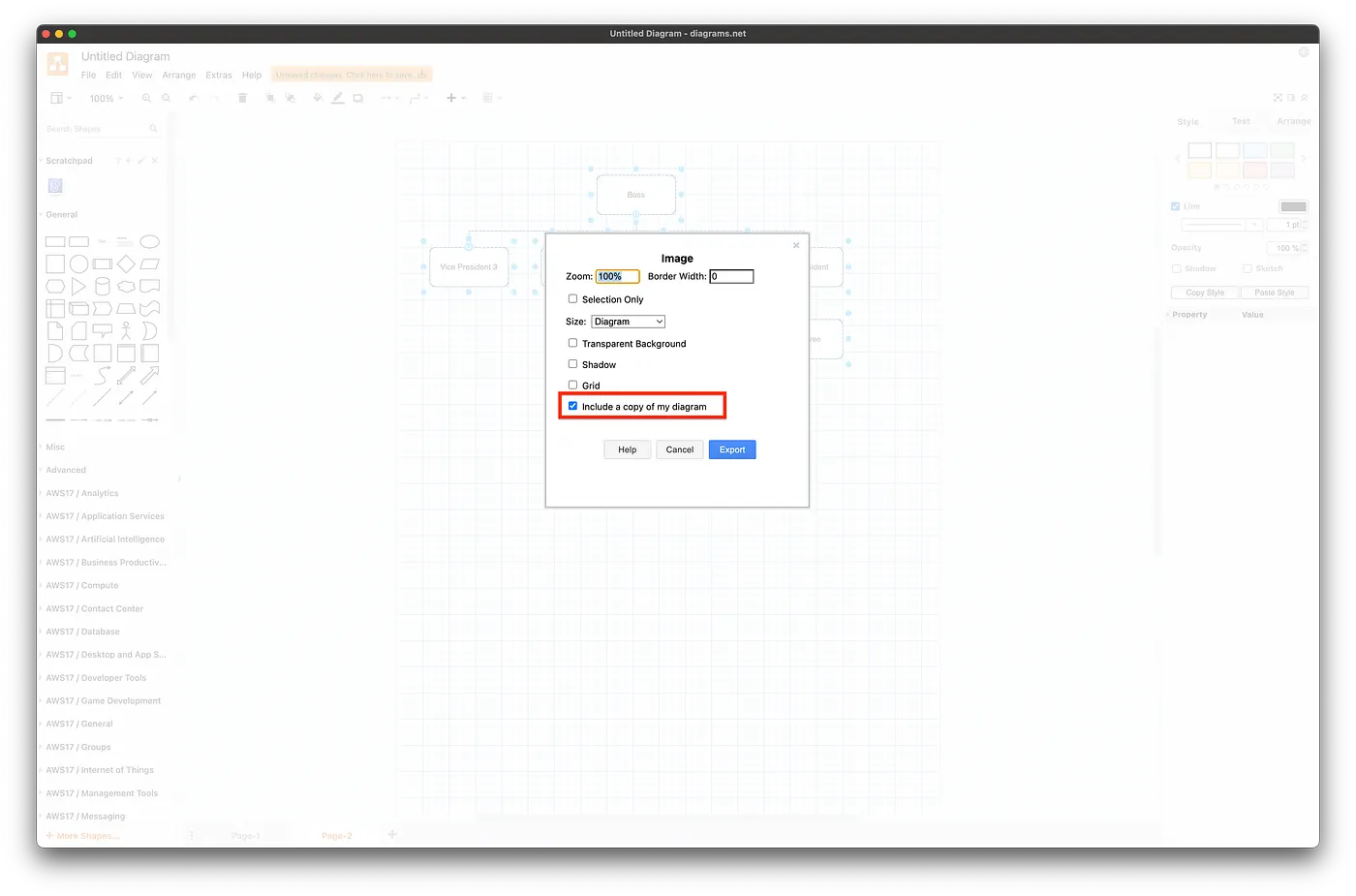
This will embed the diagram definition and allow you or your colleagues to import the diagram later.
The import can be done via drag and drop:
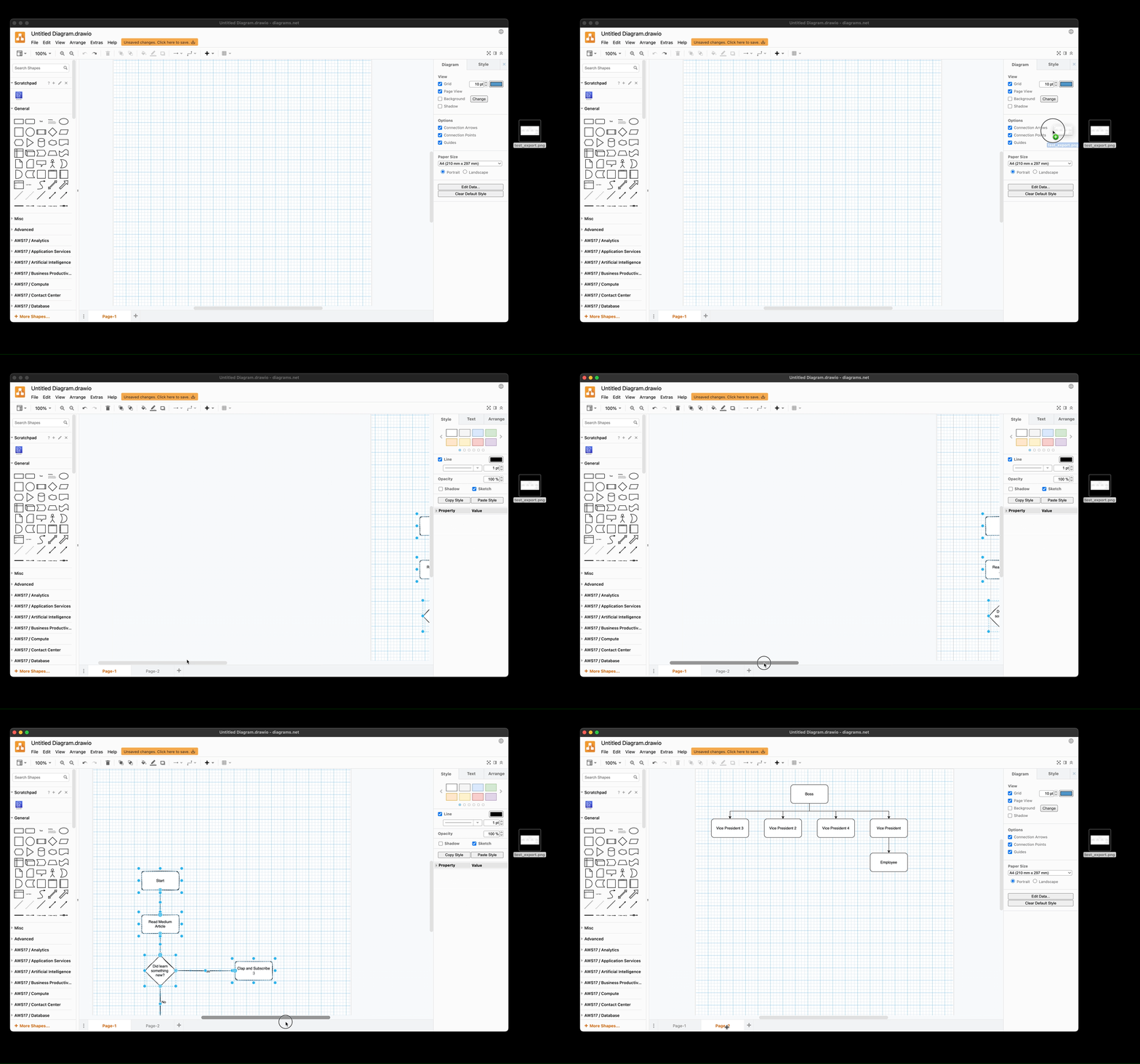
Important Note: This feature embeds all the pages of the current file into the image. Not just the exported diagram. Please keep that in mind if your file contains something you don’t want to share.
Those were my five favorite features in diagrams.net. If you use other tools and you want to share them, feel free to leave a comment. I am always interested in learning new tools and in seeing how other people use their tools.